Reasons you may need to reset MFA on your account:
- Lost, Stolen or replaced authentication device - If a user no longer has the device they were using to authenticate during login they may need to reset MFA for the account.
- Authenticator Software or Configuration issues - In some rare cases there may be issues with the software or configuration of the apps used to authenticate at login requiring MFA to be reset to resolve.
- Security or Compliance Triggers - If a risk of account compromise is identified or if a user fails MFA authentication multiple times, a 'Full Identity Reset' may be required.
- User Access Issues - If a user is struggling to login to Bank or Rota portal they should contact the Patchwork support team. If we are unable to resolve the access issues through other means, an MFA reset may be required.
Should a reset of MFA be required the following steps should be followed:
Step 1: Contact an appropriate Trust Administrator with permission to reset MFA through the Admin Portal
- If you are unable to identify who has access to reset MFA or if no Trust Administrator has been granted permission to reset MFA - please contact the Patchwork support team.
- The Trust Administrator will need to verify the users identity - Patchwork strongly advise trusts to ensure verification of identity uses internal Trust information that only the Trust and the User will know to complete verification.
Step 2: Remove any existing 'Patchwork' entries from your authenticator app before continuing .
Once your MFA is reset, the following steps will guide you through the setup process as if it were the first time. Keeping an old entry in your app can cause confusion or lead to errors during the new setup.
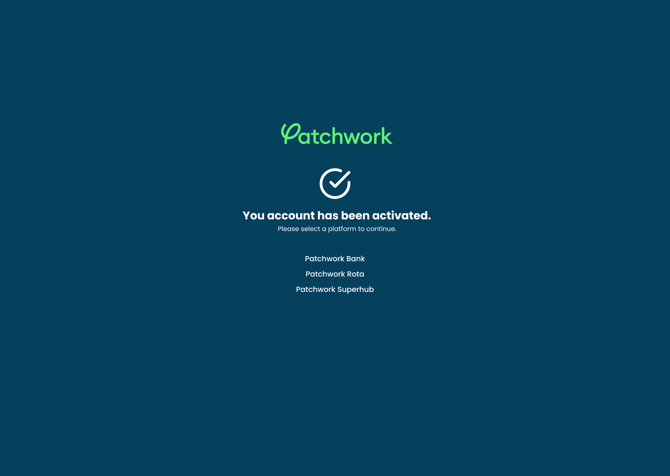
Step 3: Look out for an email from help@patchwork.health prompting you to update your account.
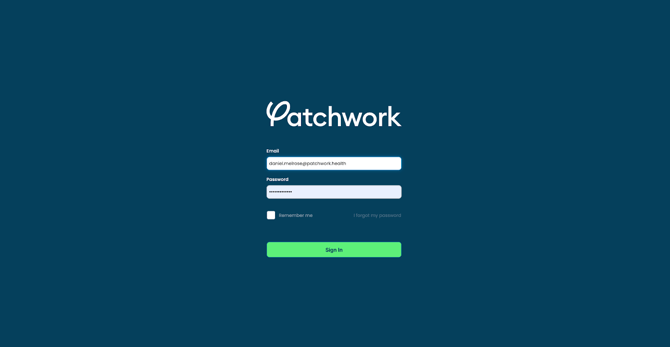
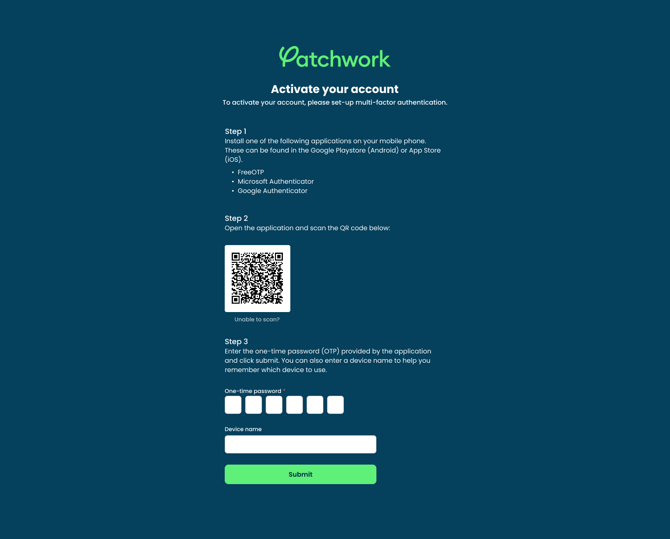
Step 4: Next time you log in to Patchwork, you will be prompted to set up MFA
-
Allow the authenticator app access to your camera so that you can scan the QR code on the screen. There is usually a + icon on these apps to give you this option.
-
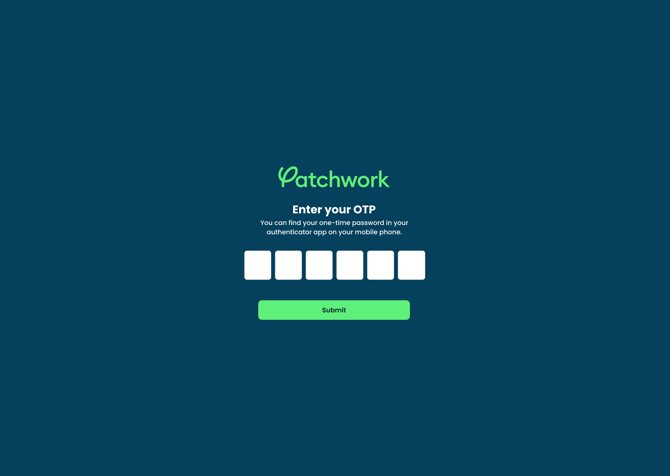
The QR code will generate a 6-digit passcode. Enter that code into the boxes on the screen. This code should regenerate every 30 seconds. If you miss it, just enter the newly regenerated 6-digit code.
-
Name your device and proceed.
Step 5: Next time you log in to Patchwork, you will be prompted to set up MFA
-
Download an authenticator app (for example, FreeOTP, Microsoft authenticator, or Google authenticator)
-
Allow the authenticator app access to your camera so that you can scan the QR code on the screen. There is usually a + icon on these apps to give you this option.
-
The QR code will generate a 6-digit passcode. Enter that code into the boxes on the screen. This code should regenerate every 30 seconds. If you miss it, just enter the newly regenerated 6-digit code.
-
Name your device and proceed.