You will need to contact the Patchwork support team to turn on MFA for your organisation. To use MFA you will need the following:
- An authenticator app (for example, FreeOTP, Microsoft authenticator, or Google authenticator) downloaded for each Bank or Rota portal user.
- A small number of named administrators within the trust who have the authority to validate and reset MFA for users if needed.
Once turned on users should complete the following steps:
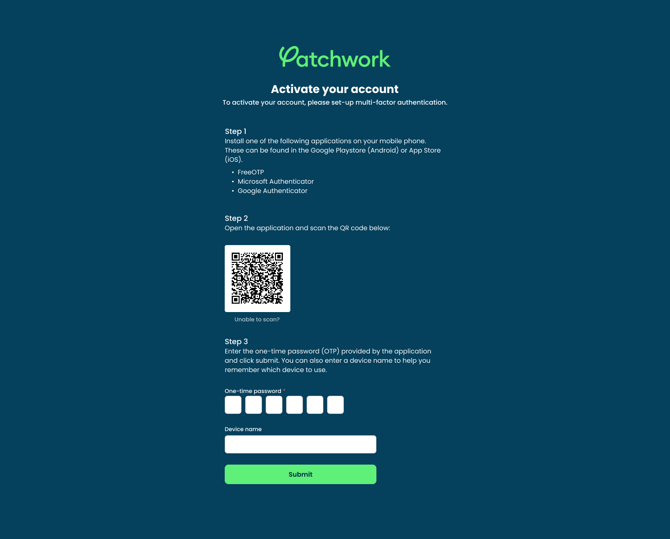
Step 1: Next time you log in to Patchwork, you will be prompted to set up MFA
-
Download an authenticator app onto the appropriate mobile device(for example, FreeOTP, Microsoft authenticator, or Google authenticator)
-
Allow the authenticator app access to your camera so that you can scan the QR code on the screen. There is usually a + icon on these apps to give you this option.
-
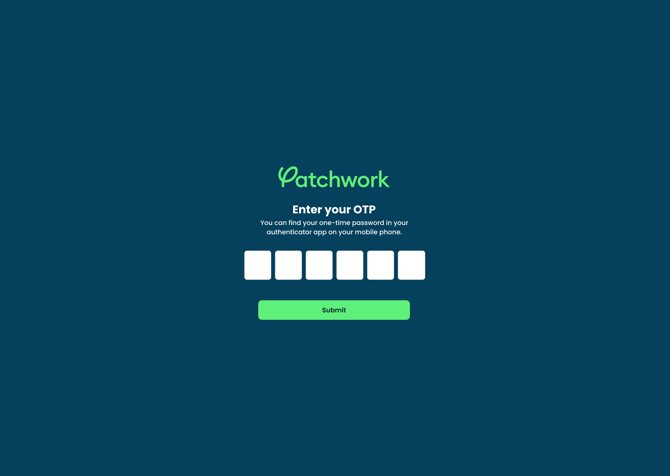
The QR code will generate a 6-digit passcode. Enter that code into the boxes on the screen. This code should regenerate every 30 seconds. If you miss it, just enter the newly regenerated 6-digit code.
-
Name your device and proceed.